Headshots & Branding
LinkedIn Profile Photo Tips
A LinkedIn photo is the one professional portrait most people book on its own. No branding session, no image library — just the small circle that appears beside their name every time they comment, apply, or send a connection request. It is also the picture that tends to get the least thought: a cropped wedding photo, a conference badge shot, something taken in a parking lot. Here is what actually changes how that single frame reads, including the rules LinkedIn publishes and almost nobody looks up.
Start With the Circle, Not the Camera
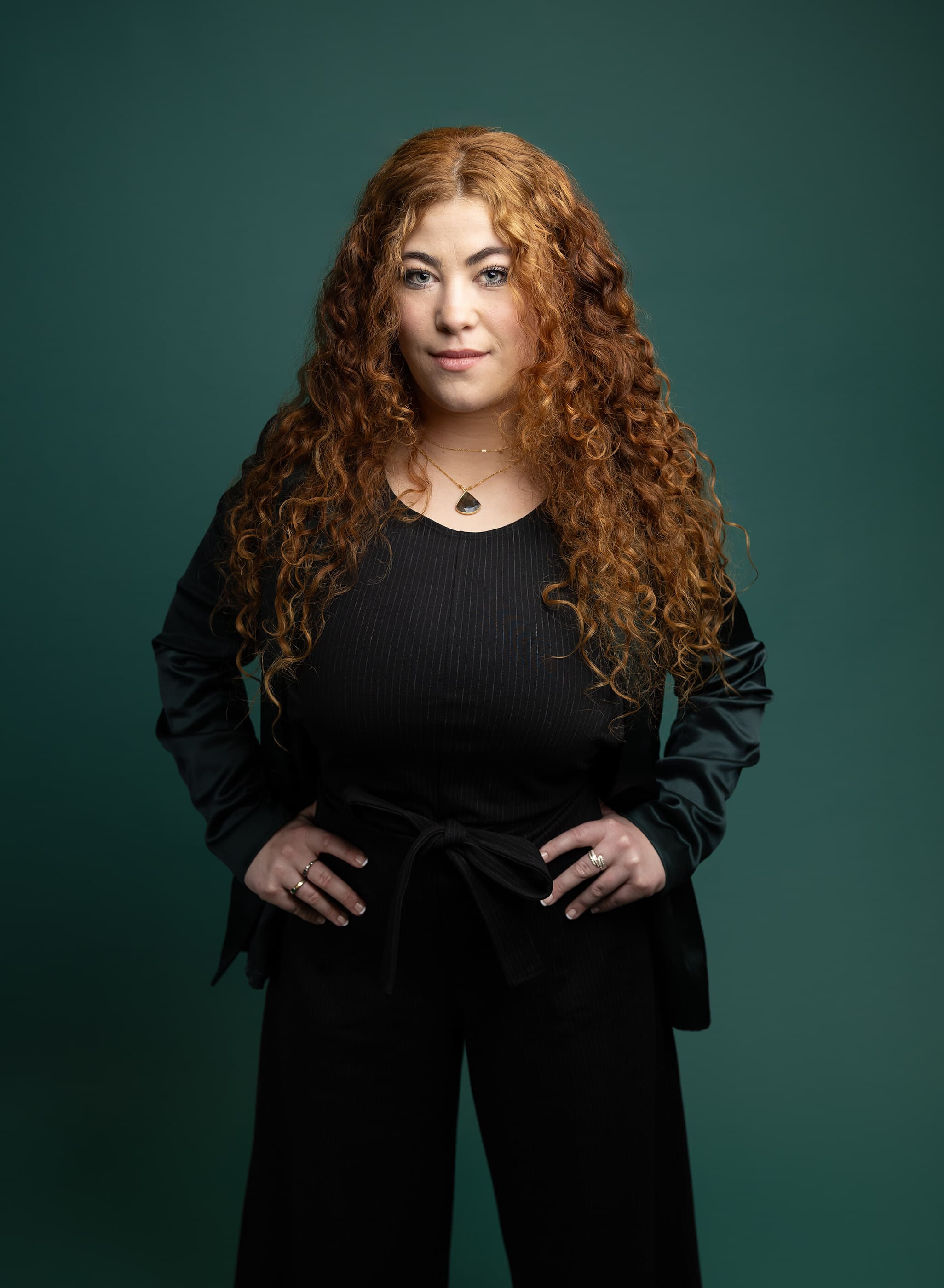
LinkedIn displays your profile photo inside a circle, and most of the places it appears display it small — beside a comment, in a search result, in a list of twenty applicants. Everything else on this page follows from those two facts. A photograph built for a circle has to survive losing its corners, and a photograph viewed at the size of a thumbnail has to say one thing clearly rather than five things faintly.
In practice that means a tighter frame than people expect: head and the top of the shoulders, a little air above the hair, your eyes sitting on the upper third of the frame rather than in the middle of it. It means one background tone instead of a busy room. And it means real contrast between you and whatever is behind you, because at thumbnail size a dark jacket against a dark wall is just a silhouette with a face on top.
It also means the full-length photo from your cousin's wedding usually cannot be rescued by cropping. Pulling a face out of a wide frame enlarges every bit of softness and noise that was invisible at full size. LinkedIn says as much on its own upload page: “We recommend adding a photo that won't require much cropping.”
Ten Tips for a LinkedIn Profile Photo
The whole checklist in one place. Each point is expanded below.
- 1Frame tight — head and the top of your shoulders, with a little space above your hair.
- 2Put your eyes on the upper third of the frame, not dead center.
- 3Choose a background that separates you: one plain tone, or a real place thrown well out of focus.
- 4Wear a solid color with one structured layer, and keep tight patterns and logos out of a frame this small.
- 5Face a single large, soft light — a north-facing window or a studio light does more than any filter.
- 6Have somebody else take it. A phone at arm's length enlarges your nose and flattens your jaw.
- 7Smile like you mean it, and let your eyes do part of the work rather than holding them wide open.
- 8Upload at least 400 x 400 pixels, under 8MB, as a PNG or JPG — LinkedIn rejects everything else.
- 9Shoot a horizontal frame in the same sitting so your cover image matches the portrait.
- 10Open your photo visibility setting and confirm it is not limited to your connections.
The Specifications LinkedIn Actually Publishes
Most of the numbers in articles about LinkedIn photo sizes are not LinkedIn's numbers. These are, taken from the help center's own upload troubleshooting page and its cover image article:
- Pixel size must be “between 400 (w) x 400 (h) pixels and 7680 (w) x 4320 (h) pixels.” 400 x 400 is the floor, not the target.
- “Maximum file size is 8MB.”
- “File type must be PNG or JPG,” and LinkedIn adds plainly: “We don’t support GIFs.”
- “We recommend adding a photo that won’t require much cropping.”
- The cover image behind your portrait has its own spec: “1584 (w) x 396 (h) pixels (recommended),” JPG or PNG, under 8MB.
Notice what is missing: LinkedIn publishes no recommended dimension for the profile photo itself, only a minimum and a maximum. A square export of roughly a thousand pixels a side sits comfortably inside both limits and holds up on a high-resolution screen, which is the practical answer to a question the help pages leave open. If your photographer sends you full-resolution files, ask for a square web crop as well — it saves you making a bad one at the upload screen.
Wardrobe, Briefly
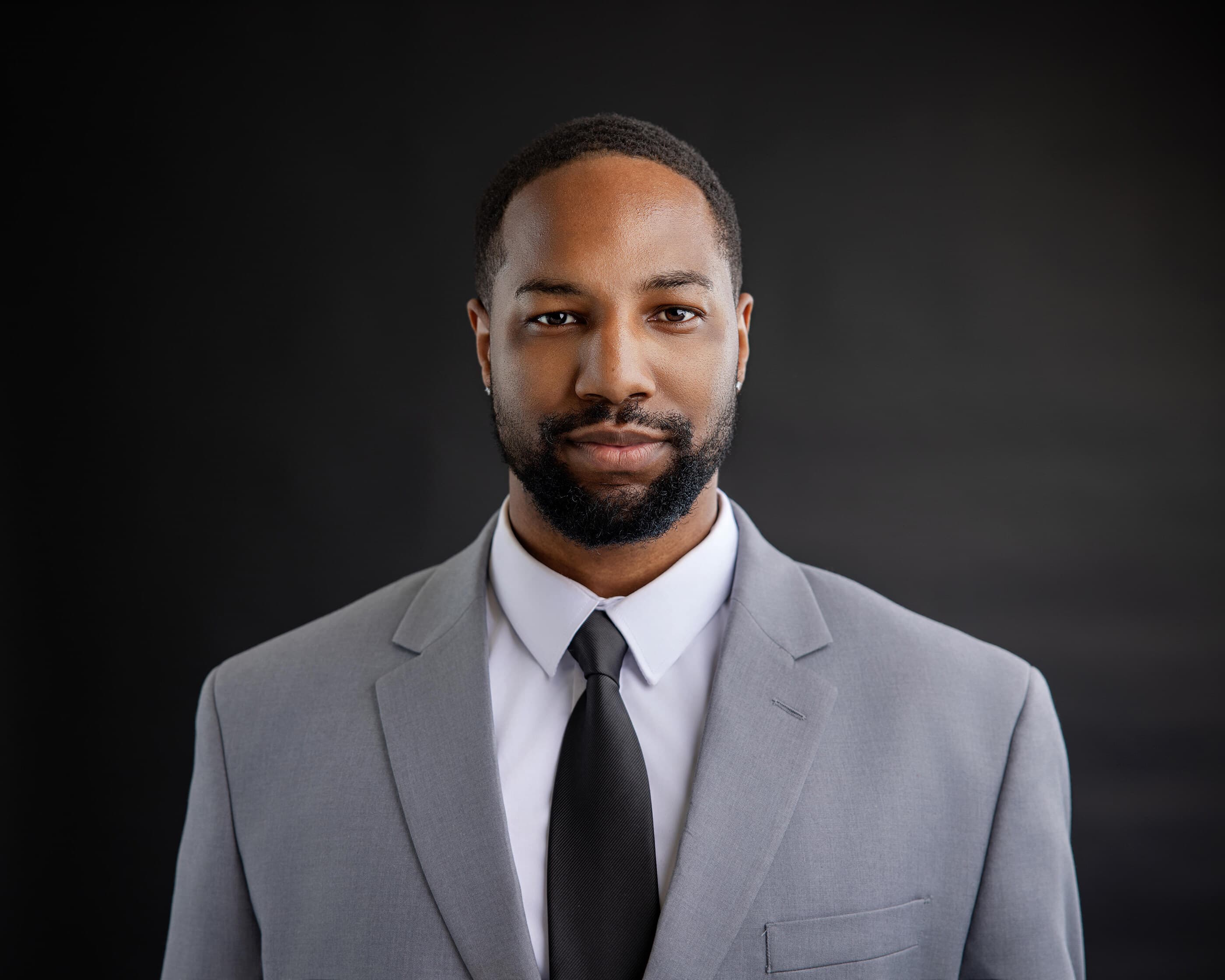
Solid colors, one structured layer through the shoulders, and nothing with a tight pattern or a visible logo — at this size a fine stripe turns into a shimmer and a logo turns into a smudge. Choose a shade that sits alongside the rest of your professional world rather than fighting it, and check the neckline, because a LinkedIn crop stops just below it.
The long version — haircut timing, what to do the day before, what to bring — is in my guide to how to prepare for a headshot session. The short version for LinkedIn specifically: wear what you would wear to meet the person you want to be hired by.
What the Testing Says About Expression
Photofeeler, a company whose business is testing profile photos, published its own analysis of what makes a LinkedIn picture work. It is a vendor's study rather than peer-reviewed research and is worth reading that way, but several of its conclusions match what I watch happen in a studio. It reports that photos with “a defined shadow along the jawline significantly increase perceived confidence, likability, and influence,” that “smiling with teeth has a huge positive impact on all three of our tested traits, especially likability,” and that “a huge, laughing smile can reduce perceived competence and influence.”
On the eyes it describes a slight squint — what it calls a squinch, “what we all do naturally when we genuinely smile” — against wide-open eyes that can read as “scared or timid.” Anything that conceals the eyes, sunglasses included, works against the photo's whole job. Clothing showed up too: the study saw “a huge increase in perceived competence and influence with subjects wearing dark-colored suits.”
The finding most worth acting on is the quietest one. Photofeeler reports that self-selected photos “make less favorable impressions than ones selected by a stranger,” and that friends and family are poor judges too. You are the worst possible editor of your own face, because you are reacting to a lifetime of seeing it. Narrow your gallery to four, then hand those four to somebody who does not love you.
Photos LinkedIn May Remove
This surprises people. LinkedIn publishes profile photo guidelines, and they are stricter than the average social platform's. The core rule is that “your profile photo must reflect your likeness,” although it allows “an illustration, caricature, or other artistic rendering of yourself” as long as it does. Beyond that, LinkedIn says it may remove profile photos consisting solely of company logos, emojis, landscapes, animals, words or phrases, flags, childhood or baby photos, or other people's likenesses — which it defines as including stock imagery, photos of celebrities, and depictions of fictional characters.
So the company logo, the labrador, the sunset over Pismo, and the picture of you at nine are all out, however much you like them. If you want the dog in a portrait, that is a wonderful thing to photograph — it just belongs somewhere other than the square a recruiter uses to recognize you.
The Settings Nobody Opens
Three things sit inside LinkedIn's photo editor that most people never touch. The first is visibility. LinkedIn offers options labeled “1st-degree connections only,” “Your network,” “All LinkedIn members” and “Anyone,” and states that the default is Anyone/Everyone. If yours was narrowed at some point — during a job search, or by accident — the hiring manager who is not connected to you is looking at a gray silhouette. LinkedIn also notes that if your public profile is disabled entirely, the photo visibility cannot be set to Public at all.
The second is frames. LinkedIn's instructions include “Click Frames to add a frame to your profile photo,” which is how the open-to-work and hiring rings get added. Worth knowing that the ring eats into the circle, so a photo framed tightly to begin with has less room to give.
The third is the editor itself, which lets you “crop the photo, use photo filters, adjust, change the position and size, rotate or change the visibility” of the image. Before you use any of it, read the warning LinkedIn puts in its notes: “We'll keep your original photo until you upload a new one,” but “we won't be able to restore or retrieve your old photo if you delete your old photo or upload a new one.” Keep your own copy of the file. Do not let the only surviving version of a good portrait live on somebody else's server.
Selfie, Old Crop, or a Real Sitting
An honest ranking: a recent, well-lit photo taken by somebody else on a phone beats a six-year-old crop from a group shot, every time. Currency matters more than equipment, and a picture that no longer looks like the person walking into the meeting quietly undercuts the trust it was supposed to build.
The reason to book a sitting instead is not that a phone cannot make a sharp file. It is working distance, controlled light, somebody directing your shoulders and your chin so you are not guessing, and finishing with forty frames to choose from instead of one. If the budget is the open question, my guide to how much professional headshots cost lays out the published national figures and what usually sits outside a session fee. If you are weighing a clean backdrop against a portrait made where you work, indoor vs. outdoor headshots walks through what each one gives up when a profile crops it into a circle.
How a LinkedIn Headshot Runs Here
In my Grover Beach studio a focused headshot sitting takes about thirty to forty-five minutes. We shoot the tight, square-friendly crop first, because that is the frame doing the work, then a wider horizontal option in the same setup so you have something for the cover image at the top of your profile and for a speaker bio later. You do not need to know how to pose — I direct where your weight goes, what your hands do, how far your chin comes forward. Nobody arrives knowing that, and being told clearly is a relief rather than an embarrassment.
Headshots and branding images are delivered with a commercial use license, so the same file can go on your profile, your company's website, and your marketing materials without a second conversation. You can see the full process on the experience page, browse recent work on my headshots and branding photography page, or — if it is a whole staff that needs matching profiles rather than one person — read how team headshots for small businesses are built.
Sources
Every specification and quotation above was taken from the page named below and checked on 2026-11-20. LinkedIn's help pages are the only authority for its own upload rules; the profile-photo study is a commercial vendor's own analysis and is described that way in the text.
- LinkedIn Help — Photo won't upload to your profile (“Pixel size is between 400 (w) x 400 (h) pixels and 7680 (w) x 4320 (h) pixels”; “Maximum file size is 8MB”; “File type must be PNG or JPG”; “We don't support GIFs”; “We recommend adding a photo that won't require much cropping”)
- LinkedIn Help — Profile photo guidelines and conditions (“You can use an illustration, caricature, or other artistic rendering of yourself, but your profile photo must reflect your likeness”; photos may be removed if they consist solely of company logos, emojis, landscapes, animals, words or phrases, flags, childhood or baby photos, or others' likenesses including stock imagery, photos of celebrities and depictions of fictional characters)
- LinkedIn Help — Add, change, edit, or delete your LinkedIn profile photo (editor options to “crop the photo, use photo filters, adjust, change the position and size, rotate or change the visibility”; “Click Frames to add a frame to your profile photo”; “We'll keep your original photo until you upload a new one”; “We won't be able to restore or retrieve your old photo if you delete your old photo or upload a new one”)
- LinkedIn Help — Settings for profile photo visibility (options listed as “1st-degree connections only,” “Your network,” “All LinkedIn members” and “Anyone”; “The default photo setting is Anyone/Everyone”; a photo cannot be set to Public if the public profile is disabled)
- LinkedIn Help — Add or change the cover image on your profile (cover image specifications: “JPG or PNG file,” “Lesser than 8MB,” “1584 (w) x 396 (h) pixels (recommended)”)
- Photofeeler — The Surprising Science Behind Your BEST LinkedIn Profile Picture (posted January 3, 2021; photos tested on “perceived competence, likability, and influence”; jawline shadow, the squinch, the teeth-showing smile, the cost of a laughing smile, dark-colored suits, and the finding that self-selected photos “make less favorable impressions than ones selected by a stranger.” This is the company's own analysis, not independent research, and it publishes no sample size)